
The full power of Paralegent AI. Right inside MS Word.
Lawyers live in Word. Paralegent AI works there too. Click “Review Contract” in the sidebar — 18+ agents analyze every clause against your playbook. Findings appear as native Word comments with GREEN/ORANGE/RED classification and replacement language.
Word Desktop (Windows & Mac) · Word Online · Office.js · Full feature parity.
The tool your lawyers will actually use.
Enterprise lawyers live in Microsoft Word — any tool that pulls them into a separate interface faces an adoption wall. Paralegent AI doesn't ask lawyers to change how they work — it brings AI to where they already are.
Select your playbook. Click Review Contract.
The sidebar shows your active playbook and a single “Review Contract” button. Click it — contract text is sent to your cloud-hosted engine. Findings begin streaming back as native Word comments within seconds. Contract matching in 15-20 seconds.
- Two tabs: Contract Review + Playbooks
- One-click review against active playbook
- Matching in 15-20 seconds
Findings stream in real time. Start reviewing immediately.
You don't wait 2-8 minutes for a monolithic report. Payment Terms and Warranty findings appear first. You start reviewing while IP and Force Majeure are still running. The sidebar progress bar tracks exactly which of 18+ categories are done.
- Findings stream as agents complete
- Progress bar across 18+ categories
- Live GREEN/ORANGE/RED count
Accept, modify, or reject. Standard Word workflow.
Each finding is a native Word comment anchored to the exact clause. Accept inserts your replacement language. Modify lets you adjust wording. Reject dismisses it. If you can use Word track changes, you can use Paralegent AI.
- Native Word comments — anchored per clause
- Accept / Modify / Reject — one click each
- Mirrors track-changes workflow — zero training
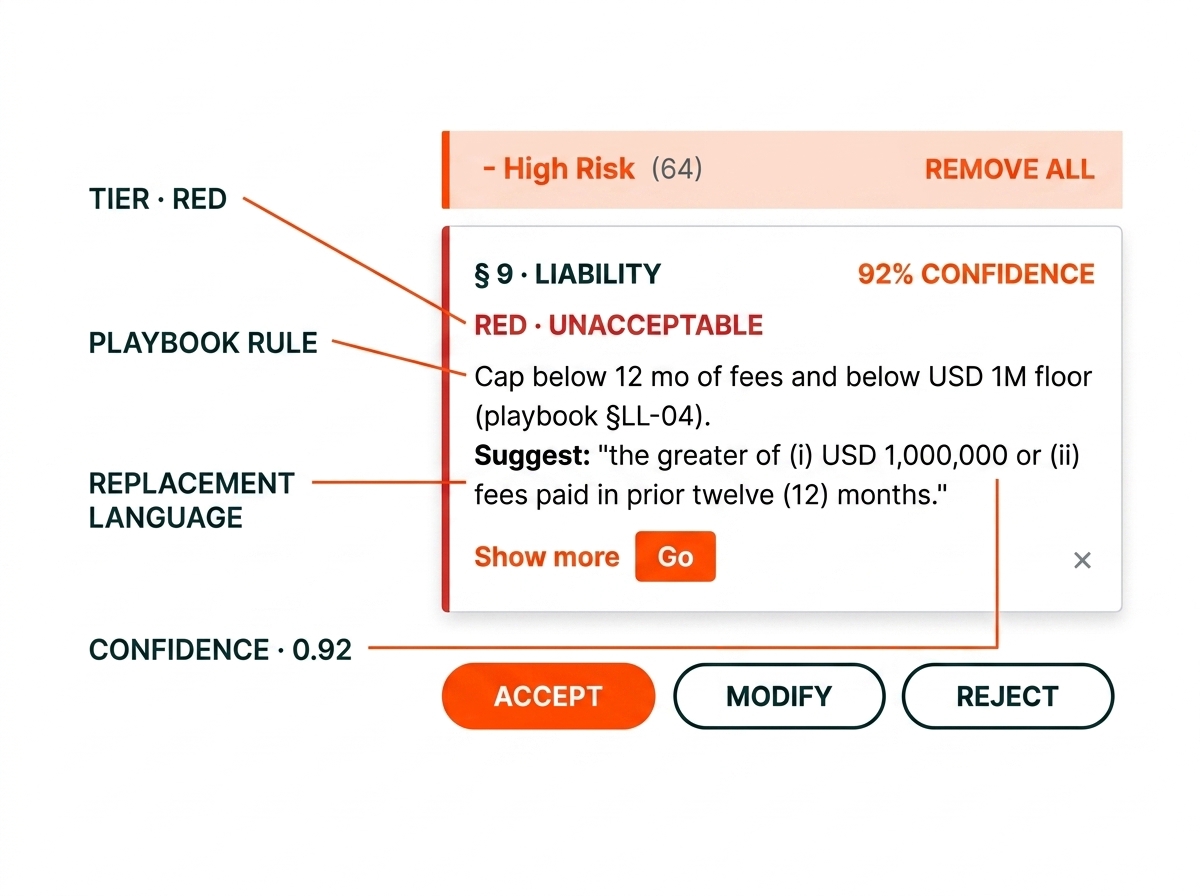
Every finding. Five structured fields.
Each Word comment is a complete analysis — not a vague flag.
Word Add-in vs the alternatives.
How reviewing contracts inside Word compares to copy-pasting into ChatGPT or using a separate browser tool.
| Paralegent AI in Word | Copy-Paste (ChatGPT) | Browser Tools | |
|---|---|---|---|
| Where you work | Inside Microsoft Word | Browser chat window | Separate web app |
| Findings format | Native Word comments | Unstructured chat text | Proprietary viewer |
| Clause anchoring | ✓ On the exact clause | ✗ Summary only | ~ Requires export |
| Accept/Modify/Reject | ✓ One-click per finding | ✗ Manual copy-paste | ~ Export then edit |
| Real-time streaming | ✓ As agents finish | ✗ Wait for full response | ~ Varies |
| Custom playbook | ✓ Your 80-150 terms | ✗ Generic prompts | ~ Limited templates |
| Shareable output | ✓ Standard .docx | ✗ Chat transcript | ~ PDF export |
| Data sovereignty | ✓ Your cloud | ✗ Vendor servers | ~ Varies |
Zero context switching. Zero learning curve.
Five outcomes from putting AI where lawyers already work.
- Lawyers stay in Word. No new app to learn. No browser tabs. No copy-pasting. The contract stays open, findings appear inline. Review happens where the document lives.
- Findings on the exact clause. Each comment is anchored to the specific text. Not a page-level summary — a clause-level finding you can act on immediately.
- Standard Word workflow. Accept, modify, reject — the same three actions attorneys use with track changes every day. Training time: zero.
- Real-time, not batch. Findings stream as agents complete — start reviewing in seconds, not after 2-8 minutes. The sidebar progress bar shows exactly what's done.
- Self-contained deliverable. The reviewed .docx works without the add-in. Email it, share in Teams, attach to your CLM. Colleagues see every finding as a standard Word comment.
Keep reading.

Contract Review
The end-to-end review experience — MSA in, redlines out.
Read more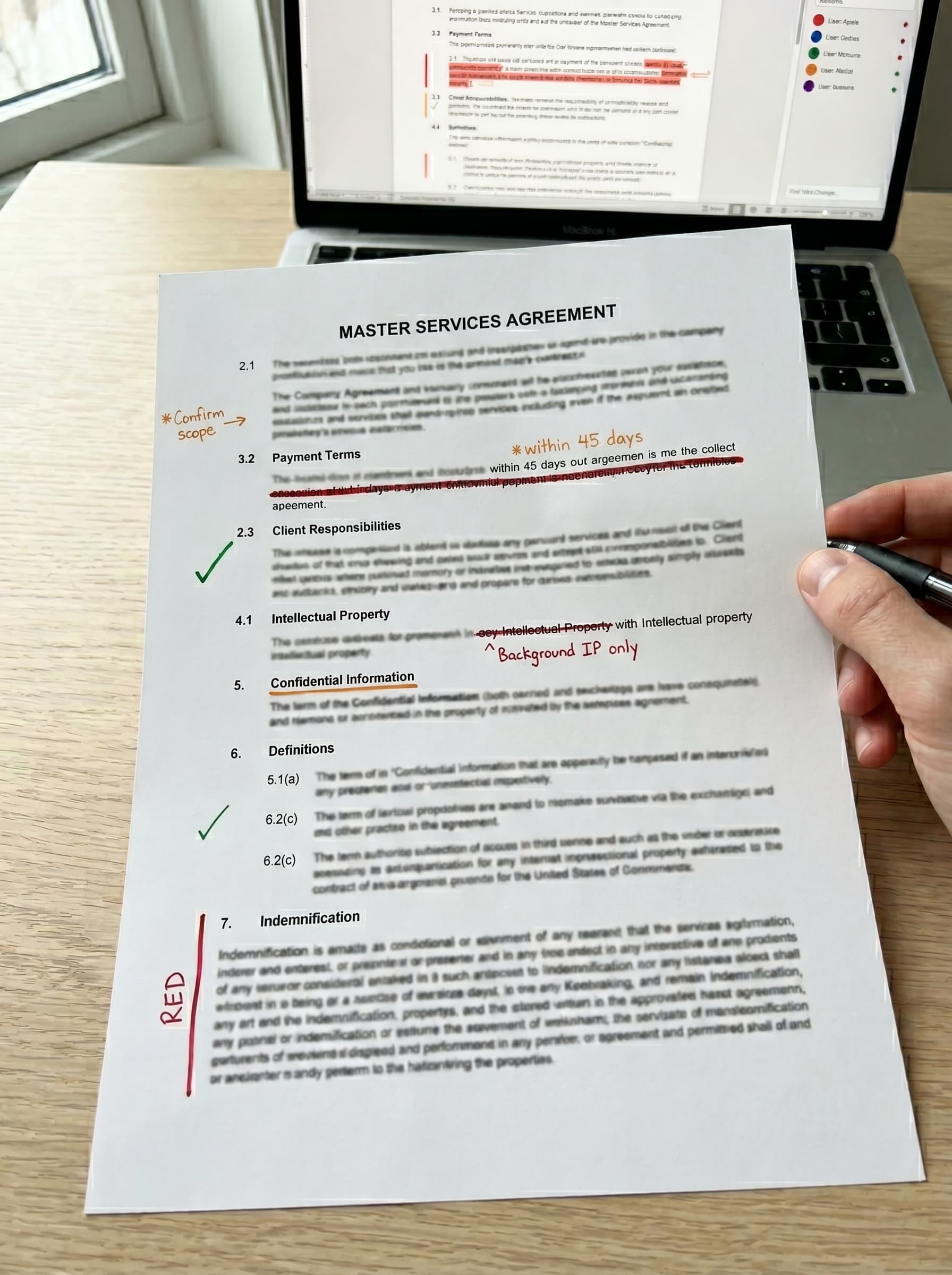
Redlines & Classification
40-50 findings per MSA with GREEN/ORANGE/RED classification.
Read more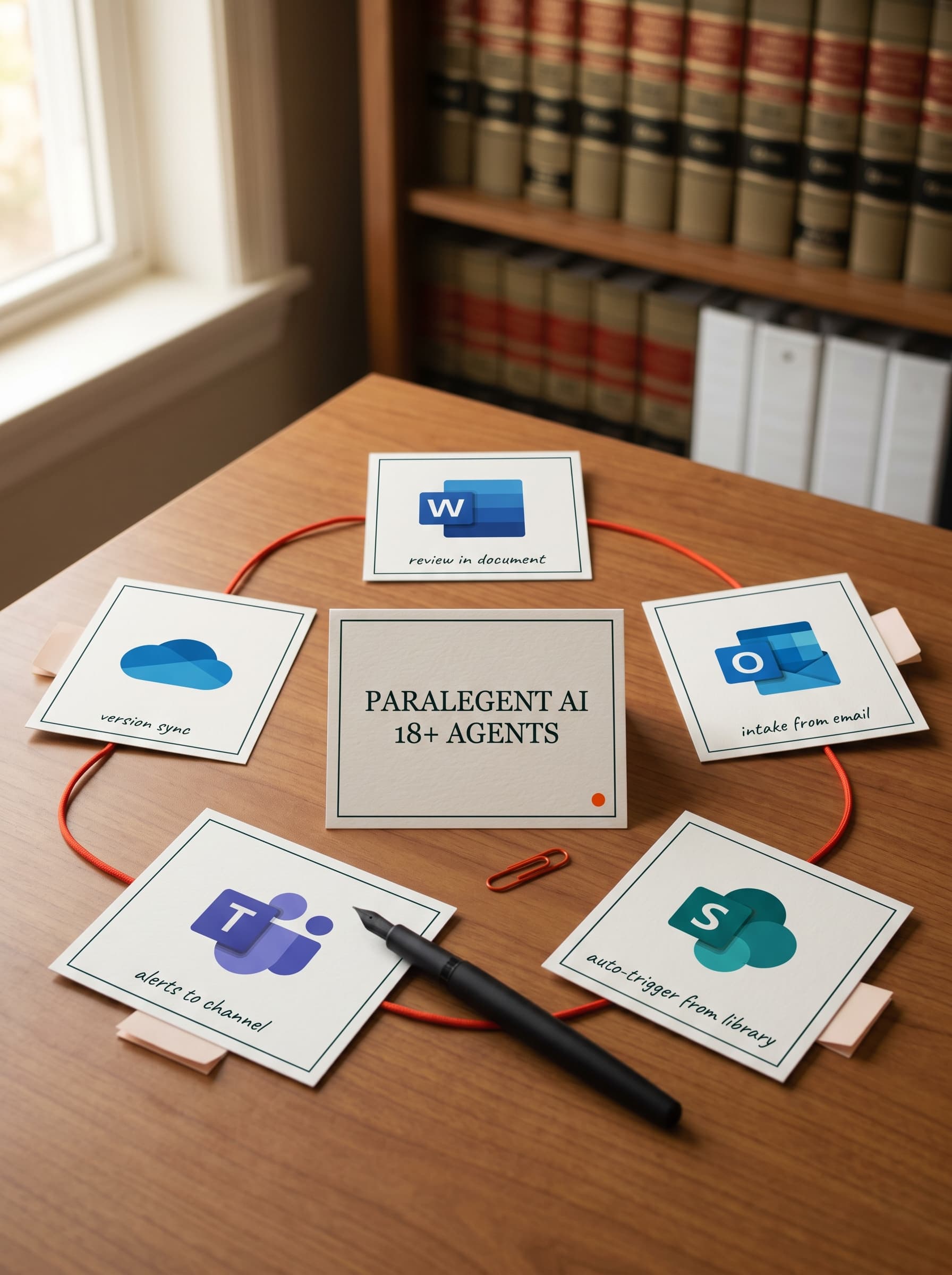
Microsoft 365
SharePoint, Teams, OneDrive, Outlook — enterprise ecosystem.
Read moreSee the Word Add-in review a contract. Live.
We run your playbook against one of your contracts inside Microsoft Word — on your screen, in your cloud.
Word Add-in questions.
Common questions about reviewing contracts inside Microsoft Word with Paralegent AI.
What does the Paralegent AI sidebar show inside Word?
The sidebar has two tabs — Contract Review and Playbooks. It shows your active playbook, a "Review Contract" button, a live progress bar tracking 18+ legal categories, a running GREEN/ORANGE/RED findings count, and a risk summary that updates in real time as each of the 18+ agents completes.
How do findings appear inside the document?
Findings appear as native Microsoft Word comments anchored to the exact clause text. Each comment shows the risk tier (GREEN/ORANGE/RED), the playbook rule from your 80-150-term playbook that triggered it, a plain-language compliance explanation, and your approved replacement language. Standard Word controls to reply, resolve, or delete.
How do I accept, modify, or reject a finding?
Each Word comment includes three actions: Accept (inserts replacement language and resolves the comment), Modify (opens an edit pane to adjust wording before inserting), and Reject (dismisses the finding). This mirrors the standard Word track-changes workflow — zero learning curve for your legal team.
Can I see results before the full analysis finishes?
Yes — findings stream into the document in real time as each of 18+ agents completes its legal category. You can start reviewing Payment Terms and Warranty findings while IP and Force Majeure are still being analyzed. The sidebar progress bar tracks exactly which categories are done.
Does it work in Word Desktop and Word Online?
Both — built on Office.js, the official Microsoft Office Add-in framework. The sidebar, inline comments, accept/modify/reject actions, and real-time progress all work identically in Word Desktop (Windows and Mac) and Word Online (browser). Full feature parity across all platforms.
What happens when I click Review Contract?
Three things: the sidebar confirms your selected playbook, the contract text is sent to your cloud-hosted Paralegent AI engine, and findings begin streaming back as native Word comments within seconds. Contract matching in 15-20 seconds, full analysis with 18+ agents in 2-8 minutes.
Can I choose different playbooks for different contracts?
Yes — the Playbooks tab lists every playbook configured in your Paralegent AI instance. Select "Vendor MSA Playbook" for a Master Sales Agreement, "SOW Playbook" for a Statement of Work. Each carries its own 80-150 terms, GREEN/ORANGE/RED thresholds, and replacement language. One click to switch.
Can colleagues see findings without the add-in installed?
Yes — because findings are standard Word comments, anyone who opens the document sees them without Paralegent AI installed. The reviewed document is a self-contained deliverable. The risk summary can be copied from the sidebar and pasted into email, Slack, or a deal memo.
How is this different from pasting into ChatGPT?
Three differences: you stay inside Word (no copy-paste, no formatting loss), every finding is anchored to the exact clause (not a generic summary), and all analysis runs against your custom 80-150-term playbook (not a generic prompt). Your data stays in your cloud — never touches a third party.
Can I cancel a review in progress?
Yes — the sidebar shows a "Stop Review" button during processing. Canceling preserves all findings already delivered to the document. You can restart the review at any time with the same or a different playbook. No data is lost.